

Trusted by:
University of Southern California
Warner Bros.
Volvo
Amazon
Stanford University
Updated: September 30, 2026
10 min read
A lot of credentialing work happens around the edges: the attendance check after a webinar, the export you're still waiting on, the new teammate still waiting on a temporary password. This month's updates take more of that off your plate.
Research with AI:
Zoom automations can now check attendance for you, so credentials go only to people who stayed for the share of a session you set. Export History keeps your recent exports in the app, so you don't have to dig through your inbox for a download link. New teammates can join from an invitation link that you can share in Slack, Microsoft Teams, or any channel your team uses.
Form limits are also higher on every plan, and custom attribute limits are higher on Starter and Professional. If you use Premium Branding, you can now add a background behind your credentials and a separate footer logo.
You'll also find six smaller improvements from August and September, such as in-app alerts when an automation stops and credential templates built from a course or event page.

Someone who joins a webinar for five minutes shouldn't get the same certificate as someone who stayed for the whole hour. This matters most for compliance training and CPD or CE programs, where the credential confirms attendance.
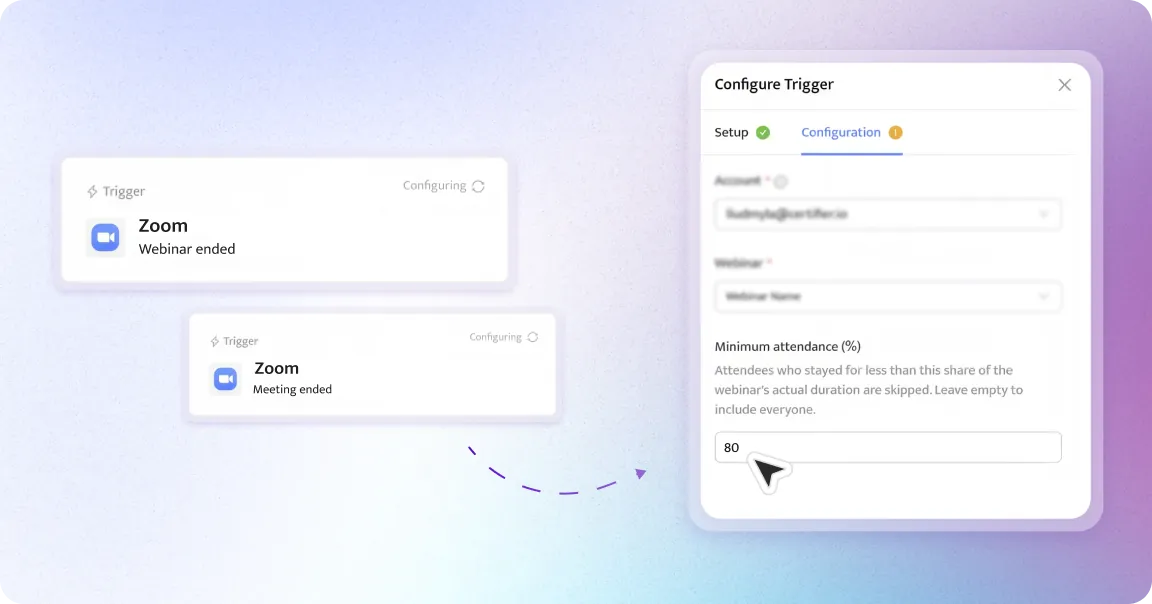
Zoom automations now have a Minimum attendance (%) setting. You can set any value from 0 to 100% of the meeting's actual duration. When the meeting or webinar ends, Certifier adds up each attendee's time across every join and rejoin, then issues credentials only to people who reached your threshold. Attendees below it are skipped. You no longer have to export the attendance report, add up rejoins, filter it by hand, and upload the qualifying people.
To set it, open your Zoom automation and go to Configure Trigger → Configuration, or connect Zoom to Certifier first if you haven't yet. The setting works with both the Zoom meeting ended and Zoom webinar ended triggers. If your program is accredited, start with the attendance requirement your accrediting body sets.
Export emails sometimes land in spam or arrive after you've moved on to something else. Now you can get the file without the email. Export History, under User Settings → Export History, shows your 100 most recent exports from every workspace you belong to. Once you export credentials, you can download the finished files from there.
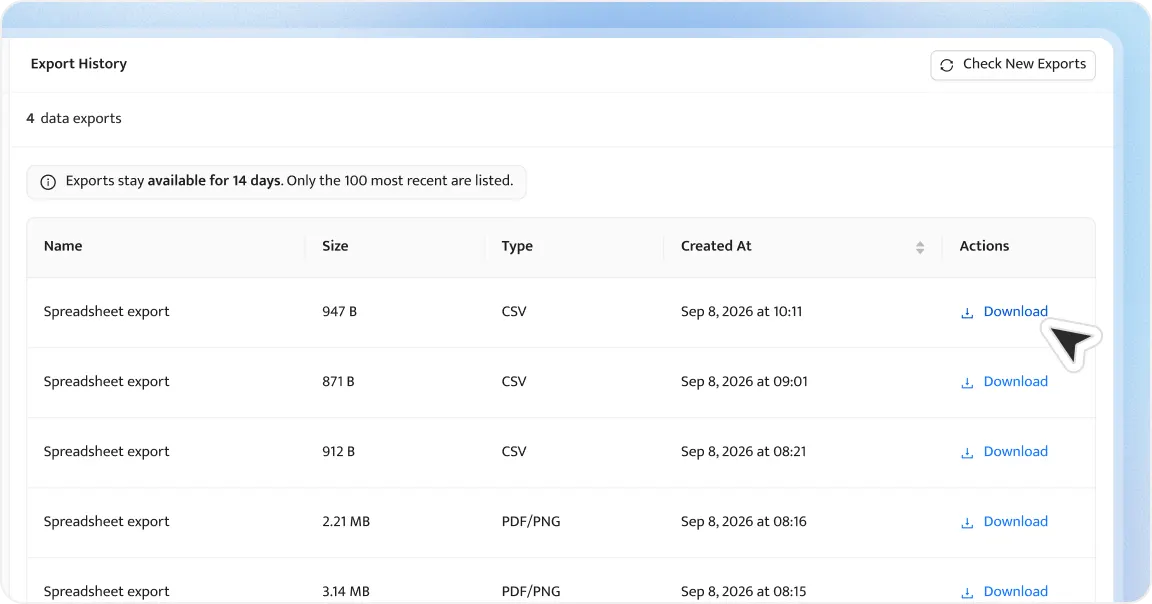
Exported files are kept for 14 days, so download anything you need to keep.
What's different: export emails no longer link straight to the file. The link opens a Certifier page with a Download button, and Certifier creates the file when you click it. The page doesn't require a Certifier login, so you can still send exports to colleagues or partners who don't have an account.
Team invites now include an invitation link. It arrives in the invite email, and a Workspace Admin can also copy it right after sending the invite, or later from Team Members. Share the link in Slack, Microsoft Teams, or any other channel your team uses. Your new teammate can then get started without waiting on support.
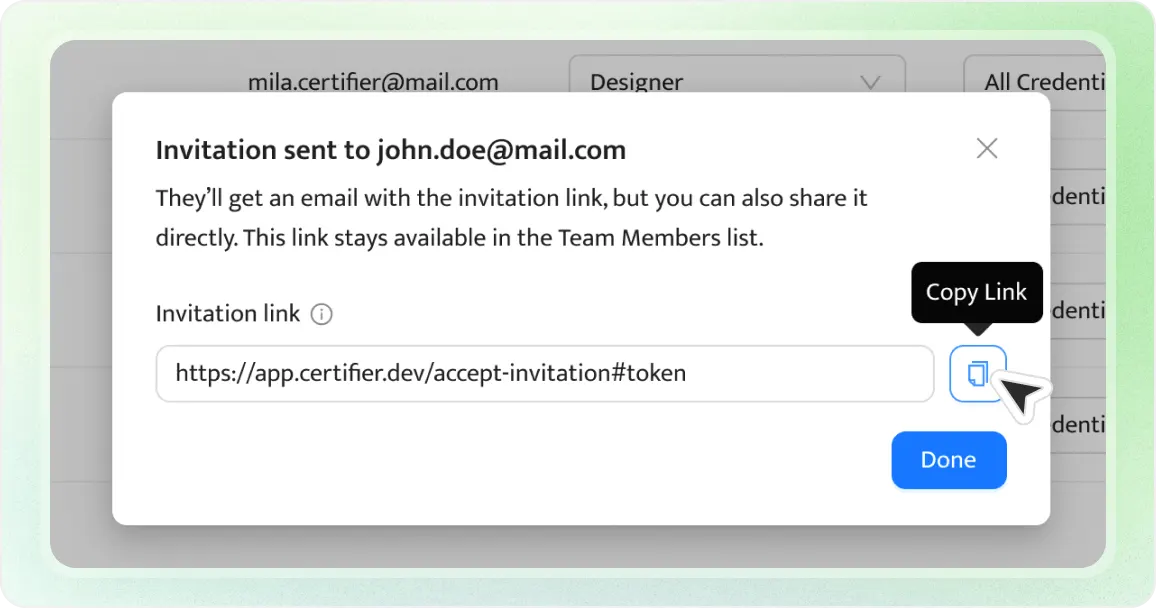
When they open the link, they enter their name and choose their own password. Invites no longer include a temporary password.
Invitation links expire after 7 days. Resending an invite creates a new link, and the old one stops working.
A few details to know:

Inviting someone uses a seat, and they show as Pending until they finish setup.
People who already have a Certifier account don't need a link. They're added to your workspace automatically.
Team members are available on Professional and Advanced plans.
Custom attributes are the fields you personalize on each credential, like course name, score, or CPD hours. Forms collect credential requests, applications, and event sign-ups inside Certifier. We've raised the limits for both, so you can run more programs on your current plan.
Plan | Custom Attributes | Forms |
|---|---|---|
Starter | 3 → 5 | 1 → 3 |
Professional | 10 → 25 | 3 → 5 |
Advanced | Unlimited (no change) | 5 → 10 |
On Starter, custom attributes are text fields. Professional and Advanced plans include number, date, and image attributes. To see how attribute types, form limits, and other features differ across Starter, Professional, and Advanced, compare Certifier plans.
Your public credential pages can now look more like the rest of your site. You can add a background image behind the credential, such as a texture, a pattern, or your brand colors, so recipients and anyone checking their credential see a page that feels like yours.

If your organization uses a compact or single-color logo in the footer, you can now upload it separately instead of repeating your header logo.
You'll find the background and footer logo settings in Workspace Settings → Issuer → Branding.
Available on Advanced, and on Professional with the Premium Branding add-on. On Professional, it applies to your public credential pages. On Advanced, it covers the whole Issuer Portal.
Alerts when an automation stops. If an automation stops because of an error, you'll see an alert in Certifier with a link to View Stopped Automations. The error now says what went wrong, and you can copy the stop reason to fix it or share it with support.
Build a credential template from a web page. When you generate a credential template with AI, you can paste the URL of your course, event, or program page, with or without a description. Certifier fills in the template, and nothing is saved until you click Create Credential Template. Available on all plans.
Deliverability tips in Sender Details. Optional SPF and DMARC guidance in Sender Details can help more of your credential emails reach the inbox.
New Complained status. You can now see when a recipient marks a credential email as spam. If you see several, check your Sender Details setup.
Drafts without an issue date. Clear the Issue Date field on a draft, and it shows Set at issuance. The credential takes the date it's actually issued, so credentials you prepare in advance no longer carry the date you created the draft.
Custom domains on the Issuer Portal. Addresses like credentials.yourbrand.com now open your Issuer Portal profile directly instead of redirecting to certifier.io.
Questions about any of these? Reach us through the chat in Certifier or at contact@certifier.io.

- Product Management
- Customer Research
- Digital Credentials
- Product Strategy
- Design Systems
Product Manager
Uliana leads product management at Certifier, using her UI/UX background to explain platform features and help organizations maximize their credentialing capabilities.


